Requirements Process · ChatGPT & Claude

Work out what your idea needs to become.

Use AI to turn an initial idea into clear requirements, assess what must happen before execution, and prepare a handoff others can use.

Bring the idea in your own words. The skill helps you ask better questions, organize the requirements and keep track of your decisions.

Tested alpha releases · Your judgment guides every stage.

A process you can see

You develop the requirements together.

The skill brings a structure to the conversation. AI proposes, researches and challenges; you correct its interpretation and decide what to accept. The dashboard keeps the results visible as the work develops.

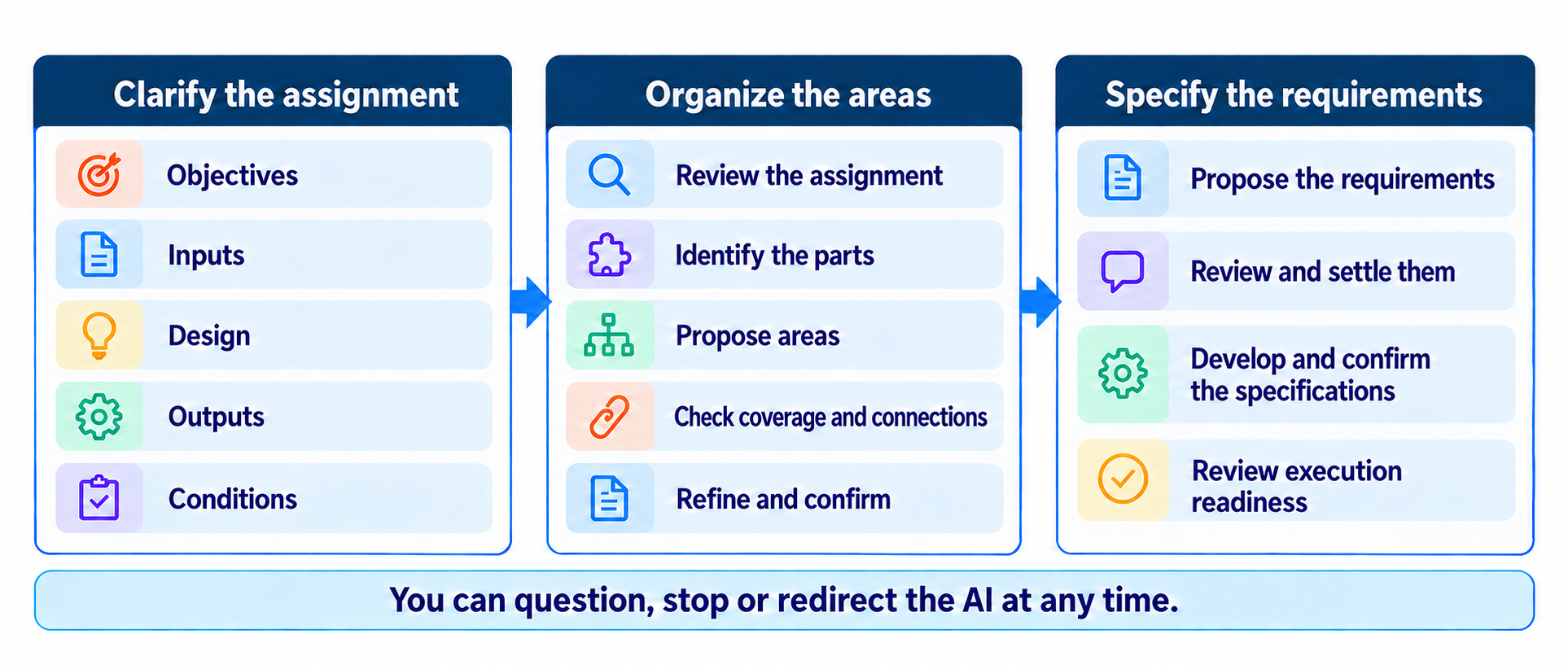
Requirements Process: Clarify the assignment through objectives, inputs, design, outputs and conditions; Organize the areas by reviewing, identifying, proposing, checking and confirming; Specify the requirements by proposing, reviewing, developing and confirming, then reviewing execution readiness.

The approved process overview. Open the image to read it at full size; on a small screen, scroll the image sideways.

01 / UNDERSTAND

Clarify the assignment

Describe what you want to accomplish, where you are now and what you already have. You do not need a polished brief.

  • Objectives: what you want to accomplish.
  • Inputs: what you have to work with.
  • Design: the approach or form you envision.
  • Outputs: what you need to produce.
  • Conditions: what the result must satisfy.
02 / ORGANIZE

Organize the areas

AI proposes the areas your requirements should cover, with their scope and boundaries. You check for gaps, overlap, dependencies and handoffs, then revise and confirm the grouping.

For a film, areas might include source permissions, screenplay development and production. Your assignment determines the areas.

03 / SPECIFY

Specify the requirements

First review the proposed requirements across all areas. Then work through the detail of each one and assess execution readiness.

  • Propose the requirements.
  • Review and settle them.
  • Develop and confirm specifications.
  • Review execution readiness.

Your judgment makes the difference.

Challenge the proposed areas and requirements. Ask what is missing, request evidence, debate alternatives or say, “That question is not useful; let’s focus here.” You can redirect the AI at any point. A suggestion becomes a decision only when you accept it.

Who it is for

Bring a project that needs clearer requirements.

Use the process for a business initiative, a service, an event, a product or a creative project. It is designed for broad use; specialist projects still need the relevant expertise.

You can begin with an uncertain idea. The goal is to clarify what must be included, done or satisfied before you commit to delivering it.

What you take away

A record you can continue from.

  • A clarified assignment and confirmed requirements areas.
  • Requirements with detail, satisfaction criteria and dependencies.
  • Readiness findings, outstanding preparation and responsibility choices.
  • A maintained dashboard and a dated PDF at any stage, with an optional person-by-person handoff.

This is a requirements process. Complex projects still need detailed budgeting, scheduling and project planning. A status label does not authorize execution.

Download & install

Choose the version for your AI platform.

Each package includes the method, approved graphic and dashboard resources. Install the package, enable it, then let the skill set up your own private workspace. Your project records stay separate from the public toolkit page.

CHATGPT PLUGIN · 0.2.0-alpha.4

Requirements Process for ChatGPT

Use ChatGPT Work with plugin upload and Sites, D1 and MCP provisioning available. Workspace policies and plan availability can differ.

Keep the ZIP intact for upload. Installing the plugin alone does not create a live dashboard.

ChatGPT: complete setup instructions

1. Install and enable the plugin

  1. Sign in to the ChatGPT account where you want to do the work. Open Plugins.
  2. Select Add → Upload plugin archive and choose the downloaded requirements-process-plugin-0.2.0-alpha.4.zip.
  3. Add Requirements Process, complete installation and verify that it is enabled. If it is already installed, use More actions → Upload new version to update the existing plugin.
  4. Select Try in chat and use Work. Ask:

Use Requirements Process to help me with [describe your assignment].

2. Create your private dashboard

The skill first asks about your assignment. Then ask:

Set up my private requirements workspace for this assignment using the bundled production source.

Allow the supported Sites setup and companion chat-tool connection when prompted. These provide your private saved records and the connection between chat and dashboard. Verify that the workspace is owner-private; public sharing is not required.

Save your workspace link and assignment identity. Keep the dashboard open while you work. It updates as changes are saved.

3. Check that it works

  1. Describe a small, non-confidential test assignment. Check that the skill explains the three stages and shows the overview graphic.
  2. Ask it to save a short note to the assignment. Reload the dashboard and verify that the note remains.
  3. Ask it to read that same saved note back. Use Print / PDF and check that the report matches the saved state.

Resume your work

Open the same workspace and tell the skill which assignment to resume. Ask it to read the current saved state before making changes. A new conversation should reuse the workspace, rather than create another copy.

If setup is unavailable

If you cannot find Plugins, Work, archive upload or the required Sites capabilities, this maintained version is not verified for that surface. Ask the skill to identify the missing capability. Do not upload the plugin into a different file type or assume a visible snapshot is a connected dashboard.

If the dashboard fails to update, check the assignment and companion connection, then ask the skill to read the saved version. Preserve the current records before retrying setup. Reinstalling is not the first repair step.

Download the ChatGPT reference guide (.md)

CLAUDE SKILL · 0.3.0-alpha

Requirements Process for Claude

Use Claude with custom skill upload plus Artifact and ArtifactData tools. This installation route was tested in a personal Claude Pro account.

The .skill and .zip files contain the identical package. Installing the skill alone does not create a live dashboard.

Claude: complete setup instructions

1. Install and enable the skill

  1. Sign in to the Claude account where you want your workspace.
  2. Open Customize → Skills → Yours → Add skill → Upload skill.
  3. Select requirements-process-claude-0.3.0-alpha.skill and choose Upload. The ZIP alternative contains the same files.
  4. Claude recognizes the skill as requirements-dashboard. Verify that it is enabled, then select Try in chat or start a conversation and ask:

Use Requirements Process to help me with [describe your assignment].

2. Create your private workspace

Describe the assignment. Ask Claude to create your private Requirements workspace using the skill’s native Artifact and ArtifactData resources.

Claude may label artifact creation Publish. Check the creation dialog and verify Only you or private afterward. Public sharing is not required. Save the workspace link and reuse it when you resume.

Keep the dashboard open. Chat and the page use the same saved record. Use one writer at a time: let a dashboard save finish before asking Claude to edit that record.

3. Check that it works

  1. Use a small, non-confidential assignment and check that the overview graphic appears.
  2. Ask Claude to save a short test note. Reload the dashboard, then ask Claude to read the saved note back.
  3. Export a current-state PDF. Accept Claude’s Save file prompt and verify the downloaded report. The person view is optional.

Resume your work

Return to the existing workspace and name the assignment. Ask Claude to read its saved state before changing it. Your decisions and histories should remain available across conversations.

If setup is unavailable

If custom skill upload or ArtifactData is unavailable, ask Claude to identify the missing capability. A clearly labeled snapshot can help you review, but it is not a verified live workspace. Support on other plans and Cowork has not been established.

If a save conflicts, stop editing, let the current save complete, then read the newest saved record before retrying. Avoid simultaneous page and chat edits.

The PDF’s built-in fonts have limits. Some characters are transliterated or shown as Unicode codes; the exact UTF-8 record is included as complete-saved-state.json and in an escaped appendix.

Download the Claude reference guide (.md) · Claude’s skill documentation ↗

Alpha release scope. Installation, saved-state round trips, reload and PDF were tested in the author’s accounts. Fresh installations in other accounts and physical phone/iPad use remain unverified. Check that your platform exposes the required capabilities before using this for consequential work. This public page does not connect to or collect your private project records.
Work through it, then accept it

The labels tell you what you have decided.

During the initial requirements review, choose Keep, Change or Remove. Keep settles that review choice. After the review, you develop each specification and assess its readiness.

OpenYou are still developing or reviewing the specification.
ConfirmedYou have accepted the detailed requirement.
ReadyYou have accepted an assessment showing that its applicable execution prerequisites are met.

Readiness work can remain in process across sessions. The dashboard records prerequisites, evidence, responsibility choices and next actions. The process is Done only when all active requirements are Ready and the whole-set review and final handoff are accepted.

Ready and Done do not authorize spending, contracting, publication or execution. For complex work, use the handoff to develop the detailed project plan.

Start in your own words

You do not need to arrive with the answers.

Tell the AI what you are trying to accomplish, what you have and where you are uncertain. Ask it to help you think, then challenge what it proposes.